|
Amount fields can be totaled in spreadsheets sent by MyAssistant, including having multiple totals for a column (for example: subtotals by group and a grand total at the bottom of the spreadsheet). Since MyAssistant uses Spreadsheet Templates and the number of rows in a spreadsheet can change between Task runs, a special function must be used.
The following outlines the possible steps to add totals to a Spreadsheet Template. Depending on the desired spreadsheet(s) sent by the Task, some steps can be skipped. These steps begin after opening the Spreadsheet Template in the email step of Task Setup:
1.Add the first total: Select the cell with the amount that will be totaled, then click the "AutoSum" button in the ribbon and select "Sum". This will add the formula needed to create a sum under the amount field: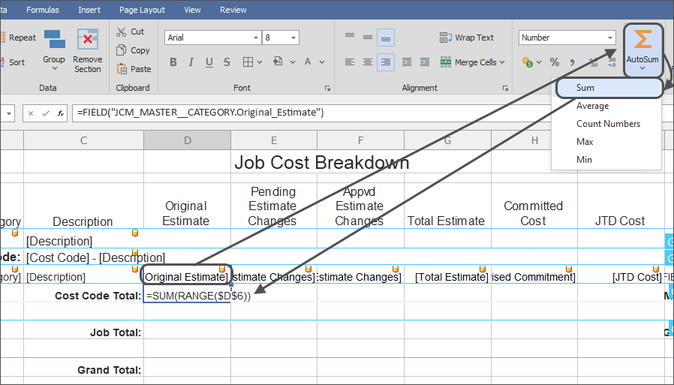
This formula is designed so that no matter how many rows appear in the Repeat Section, every time the Task runs the sum will be correct.
2.Highlight the cells for the second total: Click and drag the mouse to highlight the original amount field, the previous sum, and any rows between the amount field and where the second amount will go.
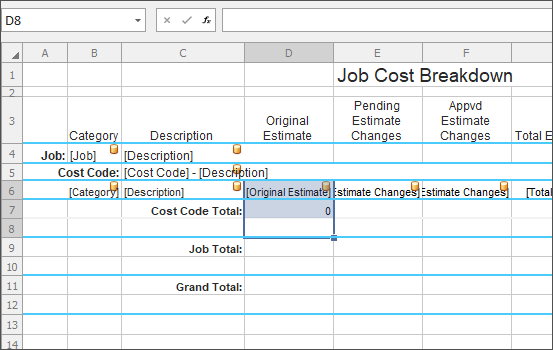
The rows between the amount and where the second total will go need to be included to ensure that all amount fields are correctly considered when creating the next sum
3.Create and move the second total: Click on the cell with the new total, then hover on the edge and drag it down to the correct position in the next group footer/document footer.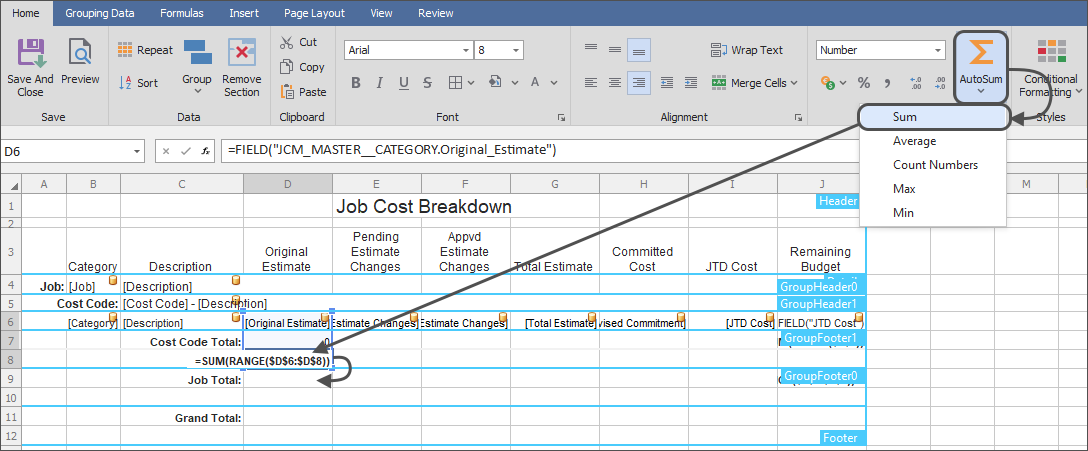
4.Adjust the second total: Double-click in the second total field and add "/2" to the end of the formula.
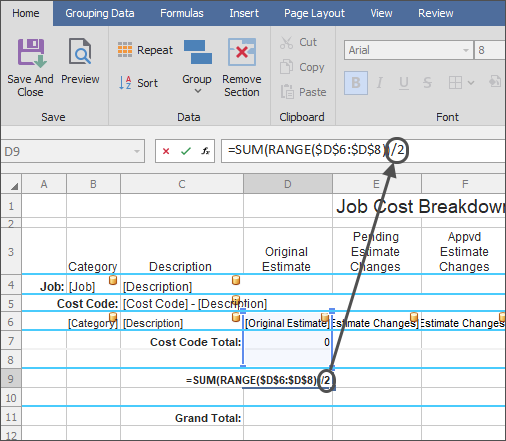
This is needed because the range of cells being calculated for the second total will be double what the number should be. This is the result of summing the original amount field and the first total -- all in the same column
|
Important: Whatever number a Total is in a single column in the spreadsheet, add "/*number*" to the end of the Sum formula.
For example: A spreadsheet has a list of Subcontracts that are grouped by Job and Vendor. The spreadsheet has a column where the Subcontract Amount is being totaled by Job, then Vendor, and finally a grand total at the end of the spreadsheet. For accurate totals, the Vendor total will need to be divided by 2, and the grand total will need to be divided by 3.
|
Repeat the above steps as needed to add as many totals as desired to a Spreadsheet Template
Related Links
Send a Spreadsheet Overview
What to Send - Send a Spreadsheet
Email a Spreadsheet
Repeat Section
Sort
Grouping
Document Headers & Footers
Import & Export Spreadsheet Templates
|

