|
MyAssistant contains several prebuilt Spreadsheet Templates that can be attached to a Task. A Prebuilt template can be used instead of creating a template from the Notification List in the Email step -- this saves time while providing the desired information.
Tip: Type "Spreadsheet" into the search on the main MyAssistant window (when viewing all Tasks) to see prebuilt MyAssistant Tasks with Spreadsheet Templates already attached
|
Every Spreadsheet Template gets linked to Sage record based on what the Task is set to send a Spreadsheet of when the template is created. As such, not all prebuilt templates are available on all Tasks.
Available Templates
The following list outlines all prebuilt Spreadsheet Templates available in MyAssistant, as well as what each template creates a spreadsheet of:
Spreadsheet Template
|
Creates a Spreadsheet of
|
|
AP Cash Flow by Vendor
|
AP Invoices
|
|
AP Invoice Register by Job
|
AP Invoices
|
|
AP Vendor Payments by Job
|
AP Invoice Distribution Payments
|
|
AR Aging by Job
|
AR Invoices (i.e. AR Status)
|
|
AR Aging Detail by Job
|
AR Invoices & Cash Receipts (i.e. AR Activity)
|
|
Cost Entries by Job
|
JC Transactions
|
|
JC Cost Breakdown
|
JC Categories
|
|
JC Cost to Complete
|
JC Cost Codes
|
|
RFI Log
|
PJ RFIs
|
|
SM Agreements
|
SM Agreements
|
|
Vendor Insurance by Job
|
JC Subcontracts and Purchase Orders (i.e. JC Commitments)
|
|
WIP Spreadsheet
|
JC Jobs
|
To attach a prebuilt Spreadsheet Template to a Task:
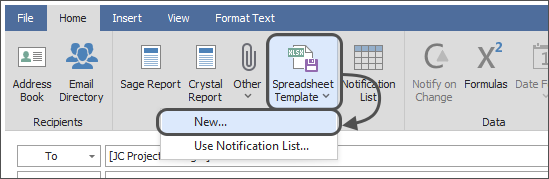
1.Create a new Task or activate a prebuilt Task and advance to the Email step of Task Setup
2.Click "Spreadsheet Template" and select "New"
3.Select a Template: Choose a template from the list and click OK
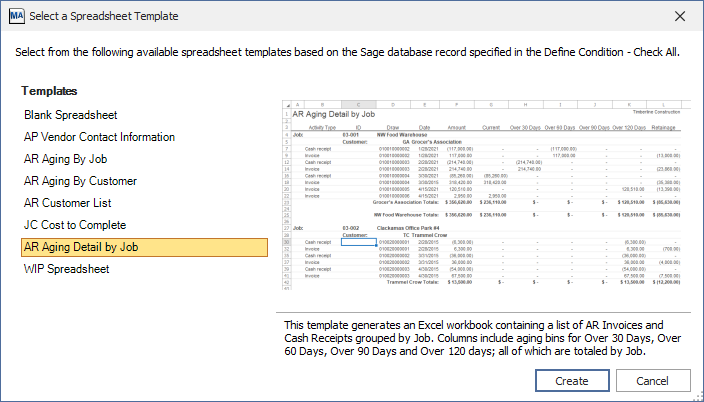
Reminder: The list of available Prebuilt Spreadsheet Templates will vary based on what was selected in the "Spreadsheet of" dropdown in the "What to Send" step of Task Setup.
|
To remove a prebuilt Spreadsheet Template from a Task:
1.Select the Task sending the Spreadsheet Template in the main MyAssistant window and click "Open" in the ribbon
2.Advance to the Email step of Task Seup
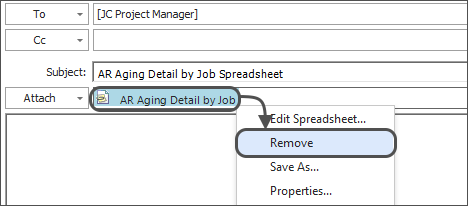
3.Right-click on the Spreadsheet Template in the attachments section (under the Subject line) and click "Remove"
Related Links
Send a Spreadsheet Overview
Repeat Section
Sort
Grouping
Document Headers & Footers
Totals
Security
Saving Copies of Spreadsheets
Import & Export Spreadsheet Templates
|

