|
Document Headers & Footers are optional sections that appear once at the beginning and end of a spreadsheet, respectively.
While Group Headers and Group Footers are added to a spreadsheet inside the Repeat Section, Document Headers & Footers must be added outside the Repeat Section.
Document Headers
Document Headers can include the name of the spreadsheet, column headings, the date the spreadsheet was run, and any Sage information that applies to all the information in the spreadsheet (for example: if sending a separate spreadsheet of Cost Codes by Job, the JC Job Number and Description could be added to the Document Header).
To add a Document Header
These steps assume the Spreadsheet Template does not have an existing Document Header, and begin after opening the Spreadsheet Template in the Email step of Task Setup:
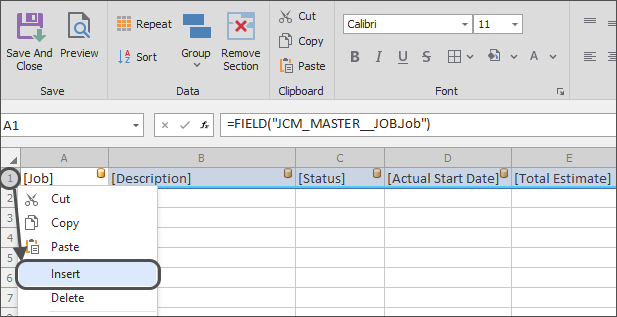
1.Add rows to the top of the Spreadsheet: Right click on the row header for the first row in the spreadsheet and select "Insert". This will add rows to the top of the spreadsheet that will be used for the Document Header. Repeat to add as many rows as desired to the top of the template:
2.Add information: Type in column headings and add any information that will print once at the top of the Document Header (for example: title of the spreadsheet, date the spreadsheet is being created, etc.)
3.Set the Header: Click and drag the mouse to highlight the cells above the Repeat Section that will make up the Document Header, then click the "Group" button in the ribbon and select "Document Header"
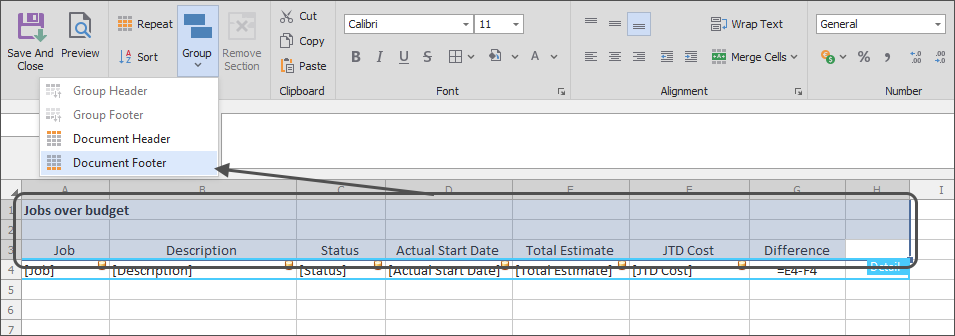
Note: Only cells above the Repeat Section can be used to create a Document Header that will print correctly. Also, if any cells inside the Repeat Section are included in the selection, a Document Header cannot be set.
|
To remove a Document Header
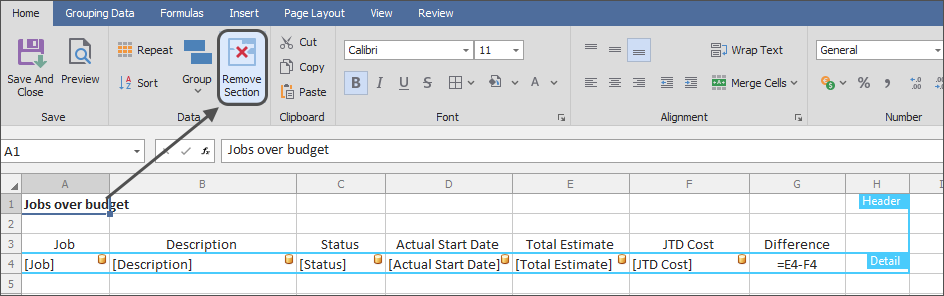
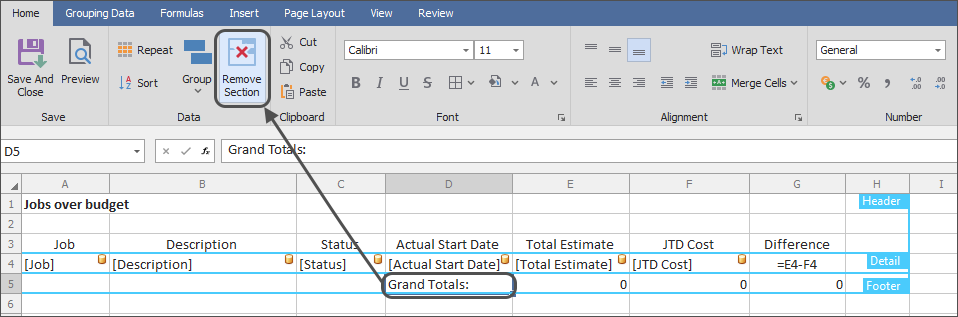
If a Document Header already exists in a Spreadsheet Template and needs to be removed, select a cell anywhere in the Document Header and click the "Remove Section" button in the ribbon:
Document Footers
Document Footers are often used for totals or any information that should be displayed once at the bottom of the spreadsheet (for example: if sending a separate spreadsheet of Cost Codes by Job, the JC Job Description could be added as a label for the grand totals in Document Footer).
To add a Document Footer
These steps assume the Spreadsheet Template does not have an existing Document Footer, and begin after opening the Spreadsheet Template in the Email step of Task Setup:
1.Add information under the Repeat Section: Add any totals or other information that should print once at the bottom of the spreadsheet
2.Set Document Footer section: Click and drag the mouse to highlight the cells below the Repeat Section that will make up the Document Footer; then click the "Group" button in the ribbon and select "Document Footer"
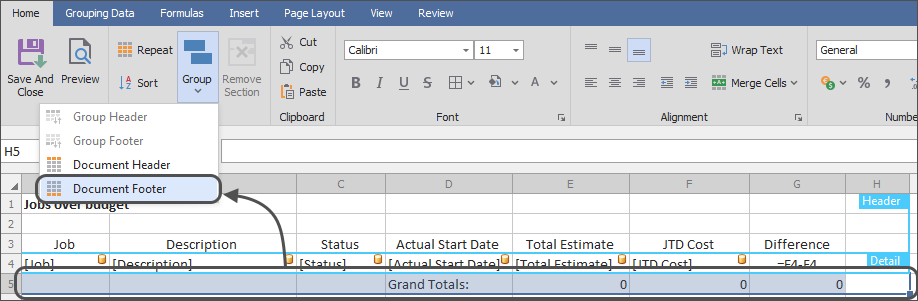
Note: Only cells below the Repeat Section can be used to create a Document Footer that will print correctly. Also, if any cells inside the Repeat Section are included in the selection, a Document Footer cannot be set.
|
To remove a Document Footer
If a Document Footer already exists in a Spreadsheet Template and needs to be removed, select a cell anywhere in the Document Footer and click the "Remove Section" button in the ribbon.
Related Links
Send a Spreadsheet Overview
What to Send - Send a Spreadsheet
Email a Spreadsheet
Repeat Section
Sort
Grouping
Totals
Import & Export Spreadsheet Templates
|

