|
|
To send a spreadsheet attached to an email, select "Spreadsheet" in the "What would you like to send" dropdown.
.png)
Next, click the dropdown next to "Spreadsheet of" and pick what Sage information you want listed in a spreadsheet. For example, to send a spreadsheet of Jobs recently set up in Sage, select "Jobs" from the "Spreadsheet of" dropdown:
.png)
Click here for a table that helps identify what record information is stored in based on where it's viewed or entered in Sage.
Tip: Use the Search at the top and the "Frequently Used" group to quickly find what you want to send.
|
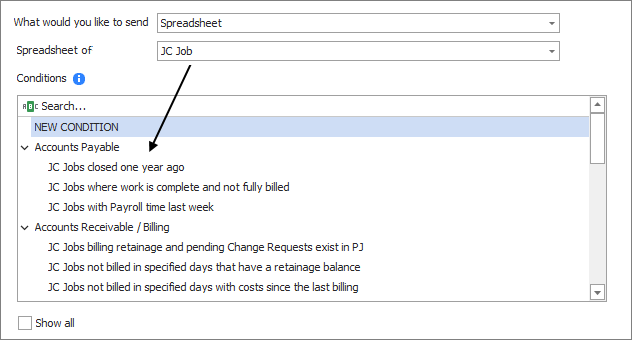
Next, select a prebuilt Condition or choose to create a new one. The Condition determines which Sage records are sent in a spreadsheet. The list of available Conditions is filtered to those that look at the same Sage record specified in the "Spreadsheet of" dropdown (for example: Jobs, Vendors, etc.).
Example: If "JC Jobs" is selected in the "Spreadsheet of" dropdown, the list will show only Conditions that also create a spreadsheet of Jobs:
Note: When activating a prebuilt Task or modifying a Task that has previously been activated, the "Spreadsheet of" record cannot be changed.
|
Click "Next" to go to the Condition step to preview/customize the Condition.
Related Links
Send a Spreadsheet Overview
|
|

