|
A popular use of MyAssistant is to send multiple recipients only their information with a single Task. Common examples include:
▪Weekly direct deposit pay stubs to Employees
▪Electronic payment notices to Vendors
▪Service Management invoices to Customers
▪Reports and spreadsheets to Project Managers containing only their jobs
Keys to Sending Each Person their Information
Mailing List with the Task Condition: When sending each recipient only their information, the Task Condition determines who should be sent an email and who shouldn't. For example:
Task Goal
|
Task Condition
|
Mailing List That's Created
|
Send employees their weekly pay stubs
|
PR Checks from the most recent pay period
|
Employees who got a check in the last pay period
|
Send ACH payment notices to Vendors
|
AP Electronic Payments in the last 3 days
|
Vendors who were paid electronically in the last 3 days
|
Send Project Managers reports for their over-budget Jobs
|
In progress Jobs that are over-budget and have a Project Manager specified
|
Only the Project Managers who have over-budget Jobs
|
Email Directory to look up recipients: MyAssistant Email Directories look up email addresses in Sage for each item found by the Task Condition. Once MyAssistant has associated an email address with each item found by the Condition, it separates them into a separate email for each recipient.
To add an Email Directory to a MyAssistant Task, click the "Email Directory" button in the Email Step of Task Setup. Select the Email Directory you want to use, then click the button that matches where you want to add it (for example: the "To" line, "Cc" line, etc.):
.png)
TIP: MyAssistant automatically filters what Email Directories are available on a Task, depending on where the Task is looking for email addresses and what information is being looked up by the Task. MyAssistant will only show Email Directories where a direct relationship exists.
|
Related: Email Directories
Prompts on Reports that filter the attachment's contents: When using MyAssistant to send attached PDFs like pay stubs, Customer statements, Job reports and more; you'll use prompts on the attached reports to filter the content for each email message. When you attach the report, change each applicable prompt so it will use the value from a Sage field -- this is how the report will create different content for different recipients:
For example: To send each employee their pay stub, attach a report design that prompts for Employee ID and Period End Date. When the Report Options window opens, change the prompts to use Sage fields:
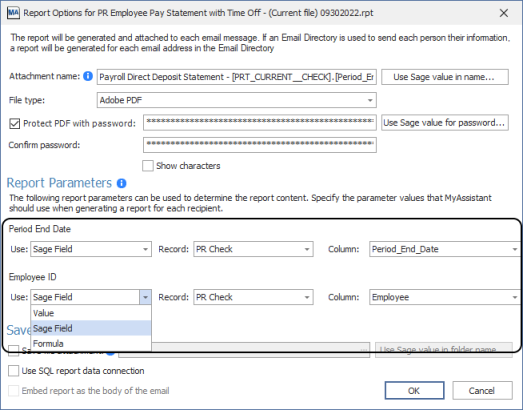
Now the report will use the Employee ID and Period End Date from the check associated with each email to fill out the report's prompts.
IMPORTANT: Attached reports run once per email message created by the Task. If a report is using information from Sage to fill out report prompts and there is more than one value that can be used for a prompt (for example: multiple Employee checks in one email), the attached report will use one random value to use in the report prompt.
|
Please note: this third key is not used when sending lists of alerts in the message body or spreadsheets
When Set Up Correctly:
1.The MyAssistant Task creates a mailing list based on the Condition's criteria
2.The Email Directory on the Task associates an email address with each item found by the Condition
3.Items are grouped and sorted into a separate email per recipient email address
4.Email content is created for each recipient, including any attached reports being run once per email. The attached report's prompts are set up to filter its content for each recipient
5.MyAssistant emails each recipient a separate message with only their information
To send each recipient only their items in a list
1.Select or create a Condition that will create a mailing list (i.e. only find information for the people you want to email)
2.Create the list of alerts you want to send in the Email step of Task Setup
3.Add an Email Directory to the Task
When set up correctly: MyAssistant will send an email to each recipient with a list of only their items in the message.
To send each recipient a spreadsheet of only their information
1.Select or create a Condition that will create a mailing list (i.e. only find information for the people you want to email)
2.Add the fields you want in your spreadsheet to the List Builder section in the Email step of Task Setup
3.Create a Spreadsheet Template by clicking "Spreadsheet Template" and selecting "Use Notification List"
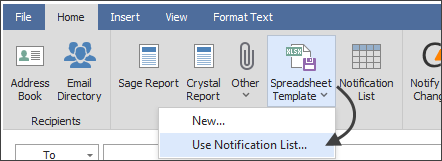
4.Adjust and save the Spreadsheet Template. More information on Spreadsheets can be found here.
5.Add an Email Directory to the Task
.png)
When set up correctly: The Task will send each recipient an email with an attached spreadsheet containing only their information.
To send each recipient only their documents/reports
1.Select or create a Condition that will create a mailing list (i.e. only find information for the people you want to email)
.png)
2.Attach an Email Directory to the Task in the Email step of Task Setup
.png)
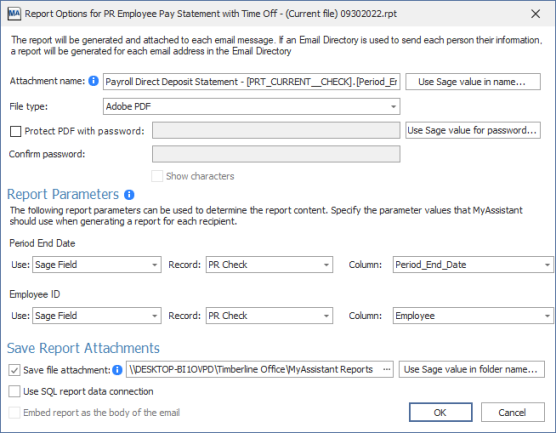
3.Attach a report design to the MyAssistant Task, and use Sage fields to fill out the report prompts in the middle of the Report Options window
Related Links
Send Reports & Documents Overview
Send Reports & Documents
|

