|
An Email Directory tells MyAssistant what email address to use to send each recipient only their information. This means that MyAssistant can do things like send each Project Manager the over-budget Cost Codes on only their jobs, send each tenant only their monthly rent statement, send each employee their weekly pay statement, or send each customer information about only their past-due invoices.
How to create an Email Directory
There are two ways to set up an Email Directory. You can enter email addresses in a field in Sage 300 CRE, or you can enter email addresses in the MyAssistant Email Directory setup.
Option 1: Look up Email Addresses in Sage
If you're entering email addresses in a specific location in Sage, MyAssistant can look at that location for its Email Directory.
1.Start the MyAssistant Designer
2.Click the "File" menu button and select "Email Directories"
.png)
3.Click "New" in the window that opens
4.Enter a name for the Email Directory in the window that opens. Each Email Directory must have a unique name.
5.Select "Lookup Email addresses in Sage 300 CRE" and click "Next"
.png)
6.Select the Sage 300 CRE data record where the email address will be entered
7.Select the field on the selected Sage 300 CRE record where email addresses will be entered
.png)
Click here for a table that helps identify what record information is stored in based on where it's viewed or entered in Sage.
8.Click "View <Record Name> records missing an Email address..." if you would like to test the selected field for blanks
9.Click Finish
Option 2: Enter email addresses in MyAssistant
1.Start MyAssistant Designer
2.Click the "File" menu button and select "Email Directories"
3.Click New
4.Enter a name for the Email Directory in the window that opens. Each Email Directory must have a unique name.
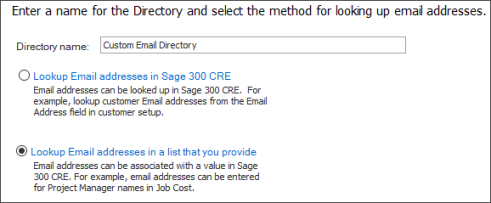
5.Select "Lookup Email addresses in a list that you provide" and click "Next"
6.Select the Sage 300 CRE data record that will be used to look up email addresses
a.Click here for a table that helps identify what record information is stored in based on where it's viewed or entered in Sage.
7.Select the Sage 300 CRE data field that will be used to look up email addresses
8.Click "Prefill <Field Name> fields Sage 300 CRE"
9.Select your data folder if needed then click OK
.png)
10.For each value, type an email address or select the email address from your Outlook by clicking the "..." button
11.Click "View <Record Name> records missing values" if you would like to test the selected field for blanks
12.Click Finish
Note: MyAssistant automatically filters what Email Directories are available on a Task based on the data relationship between where the Email Directory looks up information and what information the Task is monitoring. If a Task is monitoring information that doesn't have a direct relationship to the location where an Email Directory is looking for email addresses, the Email Directory can't be added to the Task.
|
Related Links
Send Reports & Documents Overview
Send Each Person Their Information
|

