|
MyAssistant uses "Tasks" to monitor for specific situations based on your information in Sage and automatically inform someone. MyAssistant Tasks are the individual processes used to send each Employee their pay stubs, notify Vendors when they have expiring insurance, email Service Management invoices to Customers, and more.
Each MyAssistant Task has the following parts:
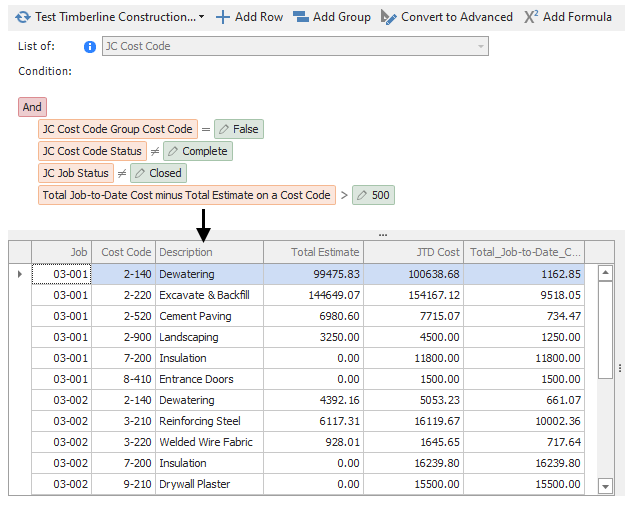
Condition: What kind of information MyAssistant should look for in Sage and the criteria it should meet. Click here for help identifying the records where information is stored based on where it's viewed or entered in Sage.
Example: A Condition is looking for JC Cost Codes, and the criteria are:
▪It is not marked as a "Group Cost Code" in Job Cost
▪The Cost Code's status is not "Complete"
▪The Job the Cost Code is on is not closed
▪The "Job-to-Date" Costs on the Cost Code are more than $500 over the Cost Code's "Total Estimate"
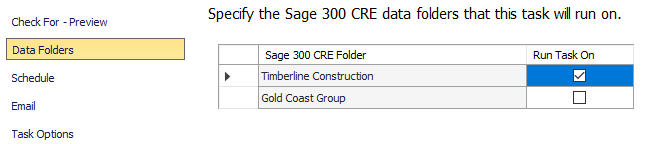
Sage Data Folders: If MyAssistant is monitoring multiple Sage data folders, this controls which data folders the Task checks for information that meets the Condition's criteria.
Schedule: Controls when a Task should automatically check for information in Sage that meets the Condition's criteria.
Recipients: Determines who should be emailed when a Task finds information matching the Condition's criteria.
Email Message: What is sent to each recipient and how the information is packaged. Emails can contain:
List of Information: A table of information with the columns selected in the Email step of Task Setup
*Insert Screenshot*
Attached Reports or Documents: All recipients can receive the same document with the same information (e.g. a Cost Report sent to a management team), or each recipient can be sent only the information that pertains to them (e.g. send each Employee their pay statement).
*Insert Screenshot*
Attached Excel Spreadsheet: MyAssistant uses a spreadsheet template to specify what Sage information will be included in the spreadsheet and the spreadsheet's layout; regardless of how much information is found.
*Insert Screenshot*
Activating a Task
To start using a prebuilt Task in MyAssistant, it must be activated. Activating a Task opens the Task Setup wizard, which steps through the preset settings on the Task so they can be customized. Specifying recipients and what each recipient receives is also part of activating a Task.
When a Task is activated, its font changes to bold and the color changes from black to blue.
.png)
To activate a Task, select a Task displayed in black, non-bold font; and click "Activate":
.png)
If this is the first time a Task is being activated, the Task Setup window will open. If not, a prompt will appear asking one of two things:
▪If MyAssistant is monitoring multiple Sage data folders, a prompt will appear to specify a Data Folder. After selecting a data folder, a prompt will appear to run the Task.
▪If MyAssistant is currently monitoring one Sage data folder, the prompt will ask if the Task should be run.
Copy a Task
Sometimes more than one Task that looks up the same information is needed; because each Task will send different emails to different recipients. For example: one Task may send each employee their pay statement every week, while a second Task sends a spreadsheet of all PR checks cut that week to someone in management. In this case, both Tasks need to look up PR Checks from the most recent pay period.
To save time in these situations, the first Task can be copied to create the second. A copied Task will initially have the same Condition, Schedule, recipients and email content as the first; which can all be changed without affecting the first Task.
To copy a Task, select it in the main MyAssistant window and click "Copy" in the button bar.
.png)
A window will open with a prompt to name the copied Task and choose if it should be activated.
Deactivating a Task
If a Task is no longer needed for any reason, it can be "deactivated"; or turned off. A deactivated Task cannot run or send emails, and will not appear in the "Activated Tasks" view.
To deactivate a Task, select the Task displayed in bold, blue text in the main MyAssistant window and click "Deactivate" in the button bar
.png)
Related Links
Conditions
Data Folders
Task Schedule
|

