|
Many companies like to keep copies of the reports and documents sent with MyAssistant. MyAssistant can save a copy of any attached report, document or spreadsheet to a location on a server.
When using a MyAssistant Task that uses an Email Directory and attached report prompts to send each recipient reports with just their information, you can save each report in a unique location. This enables companies to be more organized.
Key Pieces
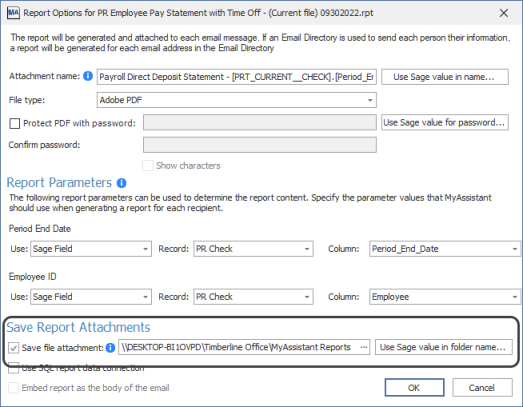
Save Location: Also known as the "Save File Path", this is where you choose to save copies of the attachments sent by the Tasks. Since Tasks run and emails send from your server, most companies will choose to save copies of attachments to a location on the same machine. Where an attachment is saved is determined in the Report Options window after attaching a report to a Task:
NOTE: If you want to save copies of attachments to a server other than the one with the MyAssistant Server software installed, there are a couple things to consider:
1.The location needs to be accessible from the MyAssistant Server using what's called a UNC path
2.MyAssistant sends generates and sends emails and attached reports using a process on your server called a Windows service (named "ISDAdminSenderService"). Every Windows service have to run as a Windows user, and the ISDAdminSenderService may need to be updated to run as a Windows user with sufficient permissions to the other computer.
|
Folders Created based on Sage information: To help you stay organized and keep track of reports you've saved, MyAssistant can create folders based on the information in Sage fields. For example, if you're saving a copy of each Job Cost report sent for each Job, MyAssistant can create folders named after the Job number or Description.
Attachment Name: This is what the name of the attachment will be once it's saved to a location on disk
Tip: Add a Sage field or MyAssistant formula (for example: "Current Date" formula) to make the name of each attachment copy saved by the Task unique. If MyAssistant tries to save a copy of an attachment and finds another in the same location with the same name, it will overwrite the existing attachment with the new one
|
How to save reports and documents attached with the "Sage Report" or "Crystal Report" options:
MyAssistant can automatically create folders based on the values of Sage fields added to the save path. In your example, you can have MyAssistant use a unique folder for each Property. Here are the steps:
1.Select your activated MyAssistant Task & click “Open”
2.Click “Email” on the left side of the window that opens
3.Double-click on your report design in the “Attachments” section under the Subject line
4.Check the box for “Save file attachment” (or confirm it’s already checked) at the bottom of the window that opens
5.Select or confirm the current path where reports are currently being saved
6.Place your cursor at the end of the file path and press the “\” key on your keyboard
7.Click [Use Sage value in folder name…]
8.Choose the Sage field or MyAssistant formula you want to use to create folders and click “Insert”. The save file path should now look something like this:

9.Repeat steps 7 & 8 if you’d like to use multiple Sage fields in the save file path
10.Click "OK" to close the Report Options window
11.Click "OK" to close Task Setup
Related Links
Send Reports & Documents Overview
Send Reports & Documents
Send Each Person their Information
Saving Copies of Spreadsheets
|

