|
Companies often want to use MyAssistant to automate or work with multiple aspects of their business. As such, a common request is having MyAssistant send emails from different email addresses. With MyAssistant, you can send messages from different Email Addresses.
Keys for Multiple "From" Email Addresses
Setting up MyAssistant to use multiple emails: Part of the initial setup of MyAssistant is to determine what email address(es) MyAssistant will use to send emails. If MyAssistant was not initially set up to use multiple "From" email addresses, this can be updated in the Server Settings step in the MyAssistant Designer's options.
Selecting a "From" Email Address in Task Setup: Once MyAssistant has been set up to use multiple "From" email addresses, select which one to use in the Email step of Task Setup.
|
NOTE: If no "From" email address is specified in the Email Step of Task Setup, MyAssistant will use whichever email address is specified as the "Default". Changing which "From" email address is the default can also be done in the Server Settings step in the MyAssistant Designer's Options.
|
To Change the "From" email on a Task
1.Get to the Email step of the MyAssistant Task. You'll go through this step when initially setting up a Task, or by clicking on "Email" on the left side of the window when opening an already-activated Task.
2.Click the "View" tab of the button bar at the top of the window
3.Click the From button to add the "From" line above the "To" line
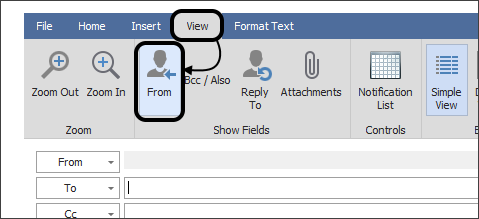
4.Click the "From" button that's appeared and select the email that this Task should use
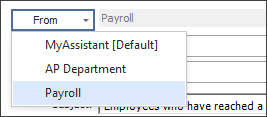
5.Finish Task Setup or click "OK" in the bottom-right to save your changes
|

