|
Add section about how to get to Report Options window
Sage or Crystal Reports on MyAssistant Tasks have a number of potential settings and options to set after they're attached. These settings control information like what information will be used in the report's prompts, what kind of file will be attached to an email, what the name of the attachment will be, and more.
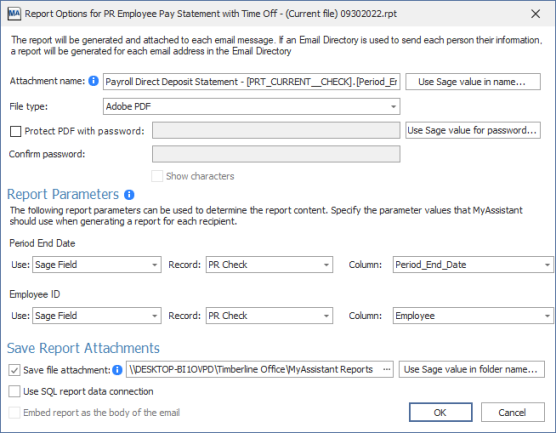
The Report Options window contains the following settings & options:
Attachment Name: The name of the file(s) attached to the email(s) sent from MyAssistant.
The values from Sage fields and MyAssistant formulas can be added to the Attachment Name to create personalized attachment names by recipient. This is done by clicking "Use Sage value in name..." and selecting the Sage field or MyAssistant formula to put in the Attachment Name. Examples include adding an employee's name or the period end date on a PR Check to the name of the pay stub employees are sent every week.
File Type: What kind of file the attachment(s) on the email(s) will be. If attaching a Sage report to a Task, the only option is PDF.
Crystal Reports attached to MyAssistant Tasks can produce one of the following file types:
▪PDF
▪Excel Workbook
▪Plain Text
▪Comma-Separated Values (CSV)
Protect PDF with Password: If the File Type is set to "PDF", a password can be set that's required for opening the attachment. To set a unique password for each recipient, use the value from a Sage field or MyAssistant Formula by clicking "Use Sage value for password..."
Report Parameters: These are the prompts (if any) that are used to filter the content of the attached report. These prompts match the prompts seen when running the report from the Sage menu.
Report parameters can be filled out with one of three possibilities:
▪Value: A set string of text, date or number (depending on the prompt) that does not change regardless of time or who the recipient is.
▪Sage Field: The value(s) from a specified Sage field that will be used to fill out the prompt. Selecting this option also requires specifying the Sage record and Sage field used to fill out the prompt. This option is used when sending each recipient only their reports or documents. Examples of using a Sage field to fill out a prompt include using the Employee ID off a PR Check to filter a pay stub to only that Employee. Click here for a table that helps identify what record information is stored in based on where it's viewed or entered in Sage.
▪Formula: MyAssistant Formulas are advanced ways to look up, calculate or summarize information in Sage. Selecting this option requires specifying the MyAssistant Formula used to fill out the prompt. The list of formulas will automatically filter based on the if the prompt is requiring a date, a number, or text. Examples include using a formula to find the last day of last month to use in the "Cutoff date" prompt for a JC Cost report.
Save Report Attachments: MyAssistant can save a copy of an attached report to a location on a server. For more information on saving copies of emailed attachments, click here.
|

