|
This step covers final options that need to be confirmed for the MyAssistant Server Configuration.
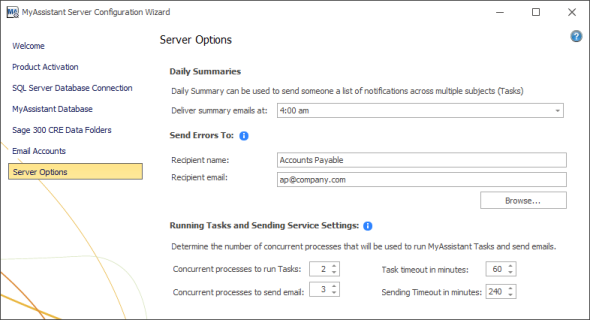
Daily Summaries Time
Tasks that send a list in an email and have no attachments can be compiled into a once-a-day "Daily Summary" email sent to recipients. This option controls when Daily Summary emails are sent each day (if there are any to send). Please note this time should be after all of your Tasks have finished running for the day.
Controlling if a Task's information is included in Daily Summary email is determined in the Task Options step of each Task's setup.
Send Errors To
Should an error occur and MyAssistant is able to send an email about it, it will send a message to the person specified in this section. Best practice is to send error messages to whoever has the MyAssistant Designer.
This information can be updated at a later date in the MyAssistant Designer by opening the MyAssistant Designer, clicking the "File" menu button, clicking on "Options", and selecting "Server Settings" on the left side of the window that opens
Running Tasks and Sending Service Settings
MyAssistant runs Tasks and sends emails (i.e. Windows Services) on the server. These processes are scalable to increase performance, and can auto-correct if they stop working.
MyAssistant’s Windows Services (named “ISDAdminTaskService” and “ISDAdminSenderService”) start other processes named “TaskRunner*32”. Each process uses 30-50Mb of memory when idle. Many variables affect system resources when Tasks run and emails are sent, including:
▪The available server memory
▪Disk drive performance
▪Other server demands at the time the MyAssistant Tasks are run or emails are being generated. For example, running Tasks at night may allow MyAssistant to use additional server resources.
You can perform the following to determine the optimal number of processes:
▪Complete the MyAssistant Server Configuration Wizard with the default settings and the MyAssistant Workstation installation.
▪Activate two MyAssistant Tasks you will regularly use.
▪Monitor the server memory usage and disk queue lengths when the Tasks are run concurrently.
▪Open the MyAssistant Configuration Manager and increase or decrease the number or processes based on the results of this test and available server resources.
|

